Add Extra Buttons
You can add extra, customizable buttons, or calls-to-action (CTAs), to any of your store pages using the following section types in the Payhip Store Builder:
- Text
- Image with Text
- Basic List
- Slider List
- Slideshow
Simply fill out the "Button Text" and "Button Link" fields when editing the section. Here's an example using a basic text section:
You can link to another page on your store by selecting from the options that appear, OR paste in/type an external link. When adding a third-party link, you want to make sure to:
1. Include the "https://" part
2. Select the option that appears above the link field to confirm.
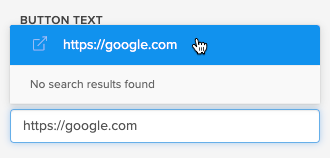
Add a standalone button
To add a standalone button without any surrounding content, you can add a "Text" section and clear the "Heading" and "Text" fields to leave them blank.
Direct checkout link
You are able to link straight to checkout for a product from the CTA using the direct checkout link. Please see this article for how to find that: Direct Checkout Link
Link to a specific section
If you want to add an anchor link that jumps to another section on your page; for example, the pricing section for a course, membership, coaching product or bundle, that is possible, provided that you are using a Custom Domain for your store.
You simply need to take the standard link for the page and add the following to the end:
#content-section-[insert "data-section-unique-id" here]
Here's an example of the kind of thing you're looking for:
https://payhip.app/b/uRgsn#content-section-a6zYR0X0Bq
Finding the "data-section-unique-id" is a little fiddly, but easy once you know how.
For example, in Google Chrome, you can:
- Right-click on the page and chose Inspect.
- Click the arrow icon at the top left of the web inspector.
- Hover over the section that you want to link to (it should highlight in blue).
- Look for the "data-section-unique-id" in the code.
- Double-click, copy, and paste the part within quote marks.
Adding anchor links will still work without a custom domain. It will just open the link in a new browser tab, rather than the same one.
Alright, we hope that helps, but if you get stuck, feel free to reach out to us by clicking the speech bubble icon at the bottom-right of the page 😊