You can easily sell software by either uploading your existing license keys or letting Payhip automatically generate license keys for each order.
In this article, we will walk you through both options and how they work.
- License Key Setup Options:
- License Key Enforcement:
How to Set Up Automatically Generated License Keys
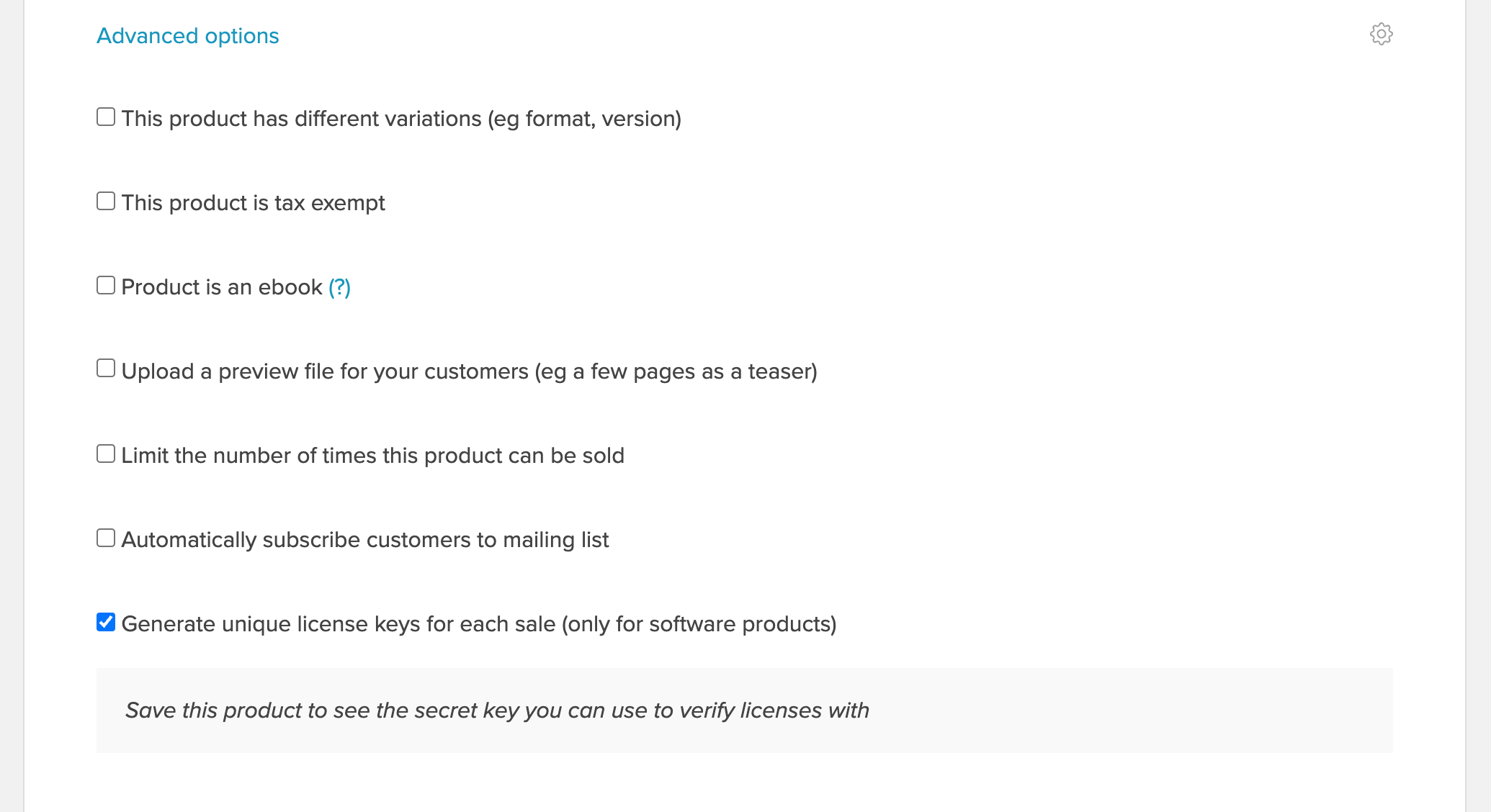
First, create your digital product as you normally would. Then scroll down to the Advanced Options section and check the box that says "Generate unique license keys for each sale." Once enabled, each customer will automatically receive their own unique license key with their purchase.
How to Sell Pre-Generated License Keys
If you already have a list of license keys, you can upload them directly, and the system will automatically assign one unused key to each customer purchase. This option is ideal for software developers, event organizers, ticket sellers, or anyone who generates keys or codes through their own system.
To configure this, click Settings under Advanced Options. A window will open where you can choose how license keys are assigned, either Autogenerate or From a list.
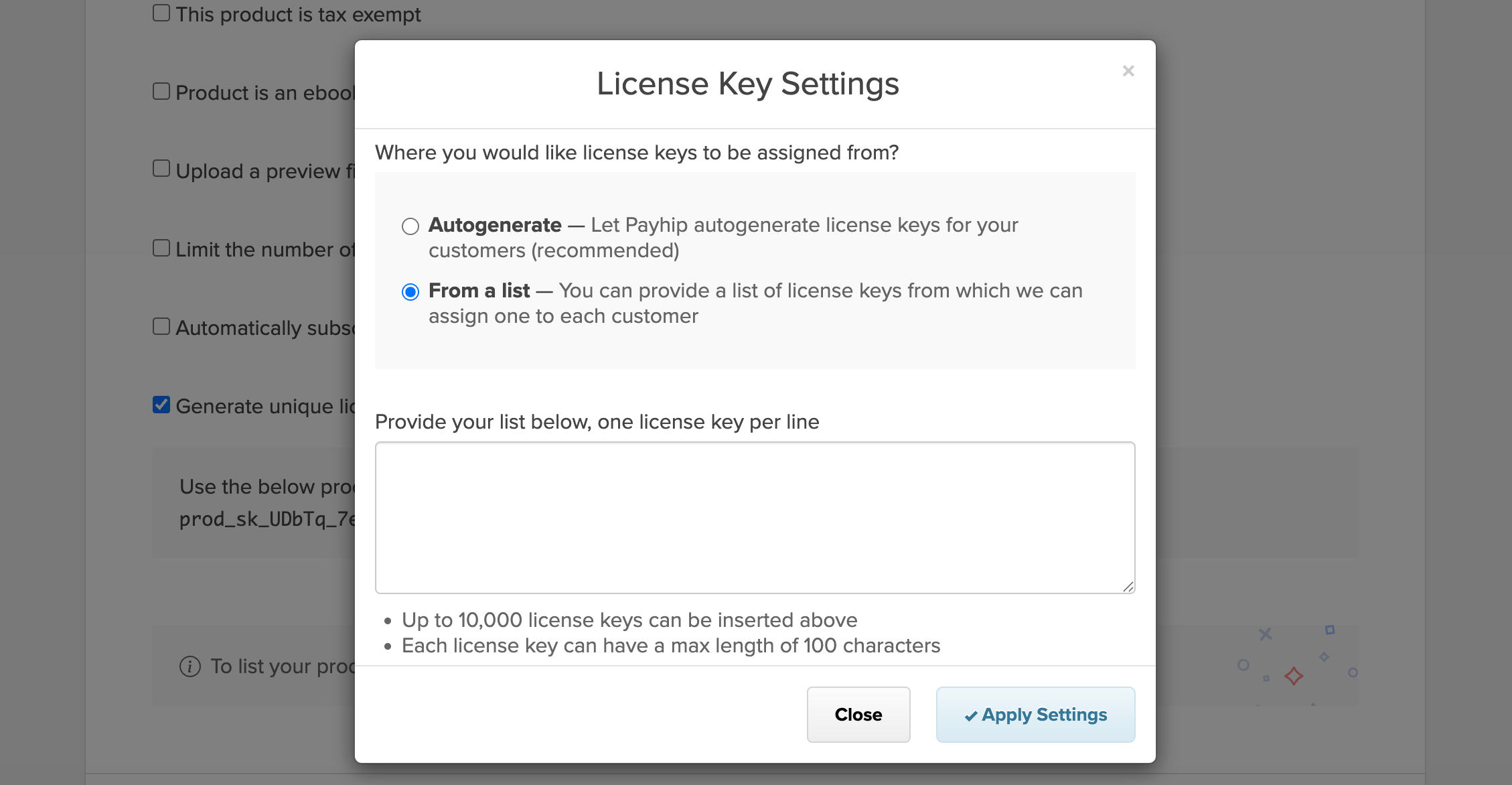
Please note that License keys should be entered one per line. You can also upload up to 10,000 keys at a time, with each key having a maximum length of 100 characters.
When it comes to License key enforcement, this is completely up to you. As the seller, you can decide how many times each license key can be used. We have two simple API calls to help you achieve this.
License Key Verification
To verify a license key in your application, simply call the verify API method.
Example Request
curl "https://payhip.com/api/v2/license/verify?license_key=WTKP4-66NL5-HMKQW-GFSCZ" -X GET --header "product-secret-key: YOUR_PRODUCT_SECRET_KEY_HERE"
Example Response
{
 "data": {
 "enabled": true,
 "product_link": "mVT0",
 "license_key": "WTKP4-66NL5-HMKQW-GFSCZ",
 "buyer_email": "contact@payhip.com",
 "uses": 0,
 "date": "2024-02-22T11:23:05+00:00"
 }
}
If verification fails, you will receive an empty response.
Enable or Disable a License Key
To enable a license key, use the endpoint "license/enable"; to disable, use "license/disable". You might want to disable a license key if a customer breaks your terms of service, for example. We automatically disable the license key if the transaction has been refunded.
Example Request
curl https://payhip.com/api/v2/license/disable -d "license_key=WTKP4-66NL5-HMKQW-GFSCZ" -X PUT --header "product-secret-key: YOUR_PRODUCT_SECRET_KEY_HERE"
Example Response
{
 "data": {
 "enabled": false,
 "product_link": "mVT0",
 "license_key": "WTKP4-66NL5-HMKQW-GFSCZ",
 "buyer_email": "contact@payhip.com",
 "uses": 1,
 "date": "2024-02-22T11:23:05+00:00"
 }
}
License Key Usage
To increase the license keys usage, simply call the usage endpoint.
Example Increase License Request
curl https://payhip.com/api/v2/license/usage -d "license_key=WTKP4-66NL5-HMKQW-GFSCZ" -X PUT --header "product-secret-key: YOUR_PRODUCT_SECRET_KEY_HERE"
Example Increase License Response
{
 "data": {
 "enabled": true,
 "product_link": "mVT0",
 "license_key": "WTKP4-66NL5-HMKQW-GFSCZ",
 "buyer_email": "contact@payhip.com",
 "uses": 1,
 "date": "2024-02-22T11:23:05+00:00"
 }
}
To decrease the license keys usage, simply call the usage endpoint.
Example Decrease License Request
curl https://payhip.com/api/v2/license/decrease -d "license_key=WTKP4-66NL5-HMKQW-GFSCZ" -X PUT --header "product-secret-key: YOUR_PRODUCT_SECRET_KEY_HERE"
Example Decrease License Response
{
 "data": {
 "enabled": true,
 "product_link": "mVT0",
 "license_key": "WTKP4-66NL5-HMKQW-GFSCZ",
 "buyer_email": "contact@payhip.com",
 "uses": 0,
 "date": "2024-02-22T11:23:05+00:00"
 }
}
If the usage update fails, you will receive an empty response.
Key notes
1) To find your product's secret key, go to the edit page and scroll down to the section where license keys are enabled. The secret key will only appear once the digital product has been successfully created.
2) Most developers will be sending API requests to us from a secure server that only they have access to. However, if you're making license key API requests from an application that is publicly accessible or easy to decompile, you'll need to protect your product secret key from exposure. Please email contact@payhip.com, and we'll be able to share an alternative integration for these cases.
Frequently Asked Questions
Can I have both pre-generated and automated license keys for the same product?
Each product can only use one license key method at a time. You must choose either pre-generated license keys or automatically generated license keys. It's not possible to enable both options for the same product simultaneously.
What happens when I run out of pre-generated license keys?
Customers will still be able to purchase the product, but no license key will be delivered once your uploaded keys run out. To prevent this, we recommend enabling the “Limit the number of products sold” setting under Advanced Options to match the number of available license keys.
Can I edit or delete license keys after uploading them?
Yes, you can edit or delete license keys as long as they have not yet been assigned and delivered to a customer. Once a license key has been issued, it cannot be modified or removed.